Importing a scene JSON someone else built
Someone hands you a .json file — a scene a fellow DM exported, one an AI assistant wrote as a recipe, or one you pulled out of your own backup. Getting it onto your table is one menu item: File ▸ Import Scene JSON.
· 5 min read · TerrainTale
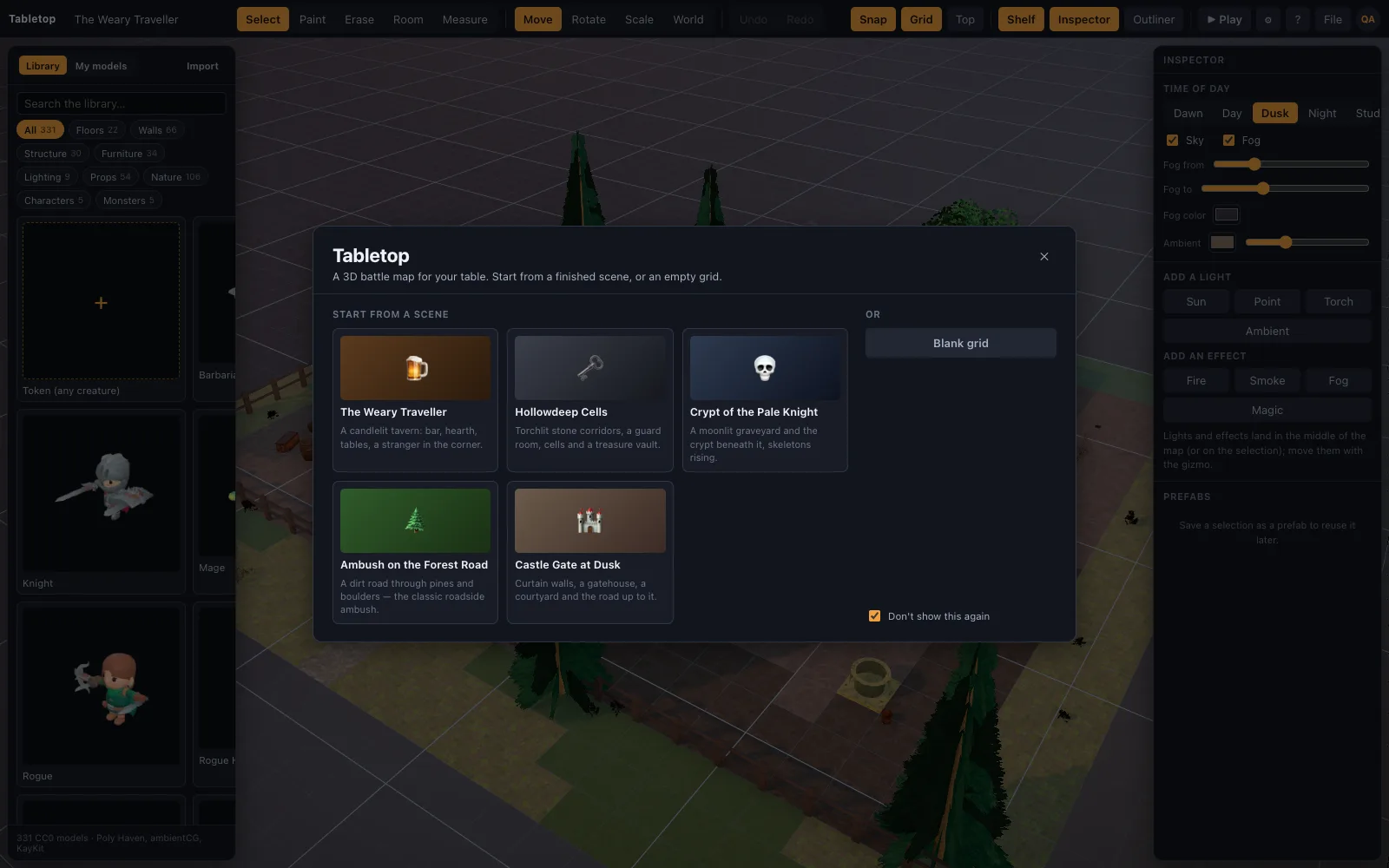
One import path for both kinds of file
File ▸ Import Scene JSON accepts both a plain exported scene (the full description of a specific table someone built) and an AI-authored recipe (the higher-level "fill this rectangle, wall this perimeter" format documented in `ai/scene-format.md`). The app tells the two apart from the file's own `format` field, so there's no separate menu item to choose between them.
Models download automatically
Every model a scene or recipe references is pulled from the built-in library automatically on import — you don't need to have those assets already, and you don't need to add them by hand first. That's what makes handing a scene to another DM actually work: they open the file, TerrainTale fetches what it needs, and the map is playable without a separate step of matching up assets.
Where an import can go sideways
A recipe's operations are applied independently, and a malformed one — a typo in an asset id, a coordinate outside a sensible range — is skipped with a warning logged to the browser console rather than failing the whole import. That means a mostly-good file from an AI assistant or a hand-edit still loads as a mostly-good scene, worth checking the console for warnings on rather than assuming every element made it in.
An exported scene that references an asset id from a source outside the built-in library (a custom import from someone else's account, for instance) can't resolve that piece the same way — the rest of the scene still imports, but that specific piece may be missing until you supply the model yourself.
Importing replaces the open scene
Import loads the file as the scene now open in the editor, so anything unsaved on the table before the import should be saved or exported first if it's worth keeping. Once imported, the scene behaves like any other in your library — it autosaves, it counts against your plan's saved-scene limit if you keep it, and it can be re-exported, renamed or copied like anything you built yourself.
Programmatic loading, for scripted workflows
Outside the menu, a scene or recipe object can be loaded directly with `window.__vtt.loadSceneJson(obj)`, which is how the app's own automated verification (importing the examples in `ai/examples/` and checking the result) works, and it's available for anyone scripting their own workflow around the same format.
After it's in your library
Once imported, a scene isn't tethered to whoever built it or where it came from — it's a normal entry in your own account's library from that point on, subject to the same saved-scene limit as anything you'd built yourself. Free plan accounts should keep in mind that importing a scene counts as adding a new one, so it only succeeds if a slot is actually free; Premium's 200-scene ceiling makes that a non-issue for most groups. If the free plan's one slot is already taken, the same paywall dialog that appears for a blank grid or a template appears for an import too, offering to upgrade or delete the existing scene rather than failing silently.